How to Block Apps on Android During Work Hours
Zomok Free is available for Android. iOS is planned; this guide covers the Free Android workflow.
Do this first
To block apps during work hours on Android, choose the distracting apps and save the days and hours you want to protect. In Zomok Free, one schedule applies to your selected app list.
- Open Zomok, choose Get started, and review Choose apps. Leave only the apps you want blocked selected, then choose Continue.
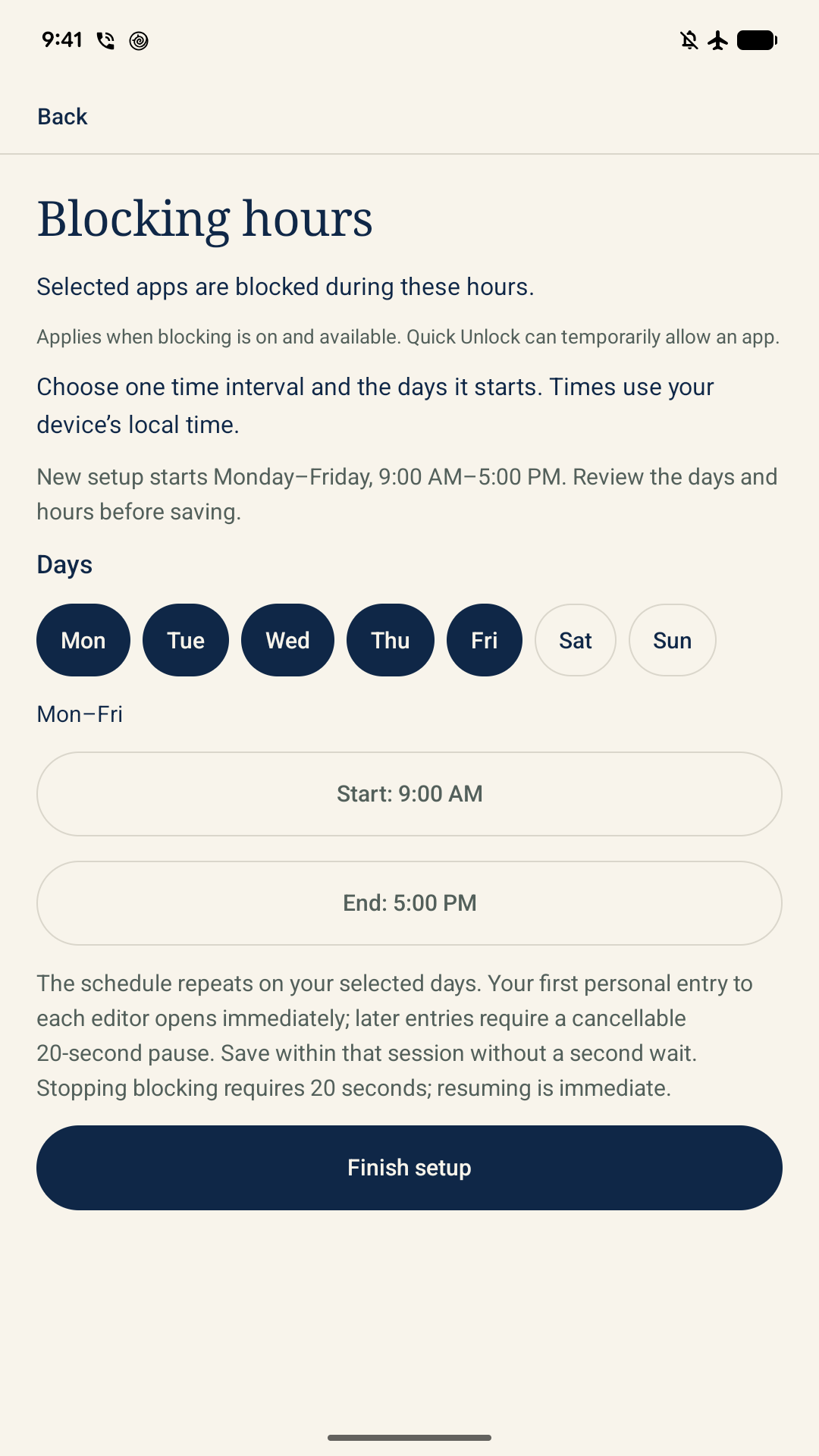
- In Blocking hours, select your workdays and set Start and End. Choose Finish setup.
- Read Allow app blocking. If you agree, choose I agree — open Android settings, enable Zomok’s Accessibility service, and return to Zomok.
- Check that blocking is active during your chosen period, then open one selected app. It should show the block screen. If blocking is stopped, use Start blocking.
Need one app briefly? Choose Quick Unlock · 10 minutes, wait 20 seconds, then use the app-named Open button. Only that app receives access.
Android workflow reference: Zomok’s official Free listing. Device menus can vary.
Start with the apps you actually want to pause
Imagine a workday from 9:00 am to 5:00 pm, Monday to Friday. You want Instagram and a game out of reach during that stretch, but still need email, maps and calls. That is a schedule example, not a promise about how much work you will get done.
New setup starts with eligible apps preselected. Review the whole list before continuing: a preselected app is not a recommendation that you personally should block it. Search apps can help you find a name. Unselect all clears the eligible selection, including apps hidden by a search; you can then choose a smaller group.
Phone, camera, email, browsers, keyboards and essential system or security apps are excluded from the Free blocking picker. Do not assume an absent app is selected. Leave a route to necessary communication available.
Set the workdays as well as the clock
In Blocking hours, choose at least one day under Days. Set different Start and End times, checking AM/PM, and choose Finish setup. If you are changing an existing schedule, the save action is Save blocking hours. The schedule uses your phone’s local time.
Free supports one interval and one app list, repeated on the selected days. Choose Monday–Friday if that matches your week; it does not have to run every day. Older configured installations may retain all seven days, so read your saved selection rather than assuming the new-setup defaults apply.
An overnight interval belongs to its selected start day. For example, Monday 10:00 pm to 7:00 am continues into Tuesday morning. That is different from choosing Tuesday as the start day. For ordinary daytime work, keep the example simple and check the Home summary after saving.
Read the permission request before enabling it
Zomok uses Android Accessibility to identify selected apps and place a blocking screen over them. Its disclosure describes app package names and window class metadata, rather than reading messages, typing or screen contents. Read the current Privacy Policy as well as Android’s own permission warning.
Agreeing inside Zomok and turning the Android service on are separate actions. If you choose not to grant access, expect the app to report that blocking needs attention. A saved schedule alone is not proof that blocking is working. Android’s wording and service-list layout can differ by phone.
Check one selected app while the rule is active
Return to Zomok and read the status. During your chosen days and hours, with blocking on and permission available, open one selected app. The block screen is the useful check; simply seeing a saved schedule is not enough.
Outside that interval, your selected apps should be available normally. At the end of a 9:00–5:00 schedule, Zomok should stop restricting them for that interval. You do not need to stop the whole schedule each evening.
If the app stays accessible during the period, check the saved day, AM/PM, selection and any active temporary access. Then check the permission status. The troubleshooting guide explains that order. Android can interrupt or bypass blocking; Zomok is not tamperproof.
Check something without cancelling your schedule
If a colleague needs to see something in a blocked app, use its per-app Quick Unlock. The cancellable 20-second wait finishes at a ready screen; the ten-minute window begins when the explicit Open action grants access, not when you first request it.
Other selected apps remain subject to their rules. The access window counts elapsed time, including time in another app or with the screen locked. When it expires, that app should block again if the rule is still active. If the work schedule has ended, normal access continues. See the complete temporary-access guide.
Could the built-in option be enough?
On phones that offer it, Android Focus mode can pause selected apps, run on a schedule and offer a temporary break. In Settings, look for Digital Wellbeing & parental controls, then Focus mode. Google documents Set a schedule and Take a break in its Focus mode guide. Menu names and availability vary.
Try the built-in option if that meets your needs. Read Focus mode versus an app blocker if you want to compare the break workflows before choosing.
A few useful questions
Do I need Pro for this schedule? No. This guide describes Free’s one selected-days schedule and ten-minute Quick Unlocks. Pro is not publicly available in the evidence checked for this draft.
Can I change the list later? Yes. Existing Free editors use a cancellable 20-second pause after their separate first personal entry. Save within the editor; leaving without saving keeps the existing rule.
Does this block websites too? This guide covers installed apps. Free excludes browsers from its picker; selecting Instagram does not establish blocking of instagram.com in a browser.